Adjust MCP
Adjust MCP is currently in Early Access. Speak with your Adjust representative or contact sales@adjust.com to get this added to your package.
Adjust MCP (Model Context Protocol) connects Adjust data to your AI tools and workflows. It is designed for organizations that want to analyze and act on Adjust data from their own AI environment rather than through dashboards.
- Keep control of your data since reasoning and processing happens in your AI environment
- Compose agent workflows across tools by combining the Adjust MCP server with other MCP integrations
- Support actionable automation by retrieving performance data, analyzing it externally, and acting in another system
Connect the Adjust MCP server to AI clients such as Claude, Codex, Cursor, or automation platforms like n8n. Then ask plain language questions, retrieve performance metrics, or combine Adjust data with other MCP-enabled systems.
The Adjust MCP server exposes only aggregated data. All reasoning happens in your own AI environment using your chosen AI provider, and Adjust does not process your requests with Adjust-hosted LLMs.
Get started
Requirements
- Adjust MCP must be enabled on your account. Reach out to your Adjust representative or sales@adjust.com
Authentication
All supported clients authenticate via OAuth.
To get started, follow the steps for your AI client:
Migrating to OAuth:
If you've previously configured Adjust MCP using a token, you'll need to reconnect your MCP client using the OAuth flow.
- End your existing MCP session.
- Start a new session.
- Complete the OAuth sign-in flow when prompted by your MCP client.
No other configuration changes are required. Your existing MCP configuration and setup remain unchanged, and your previous history will continue to be available after reconnecting.
Claude
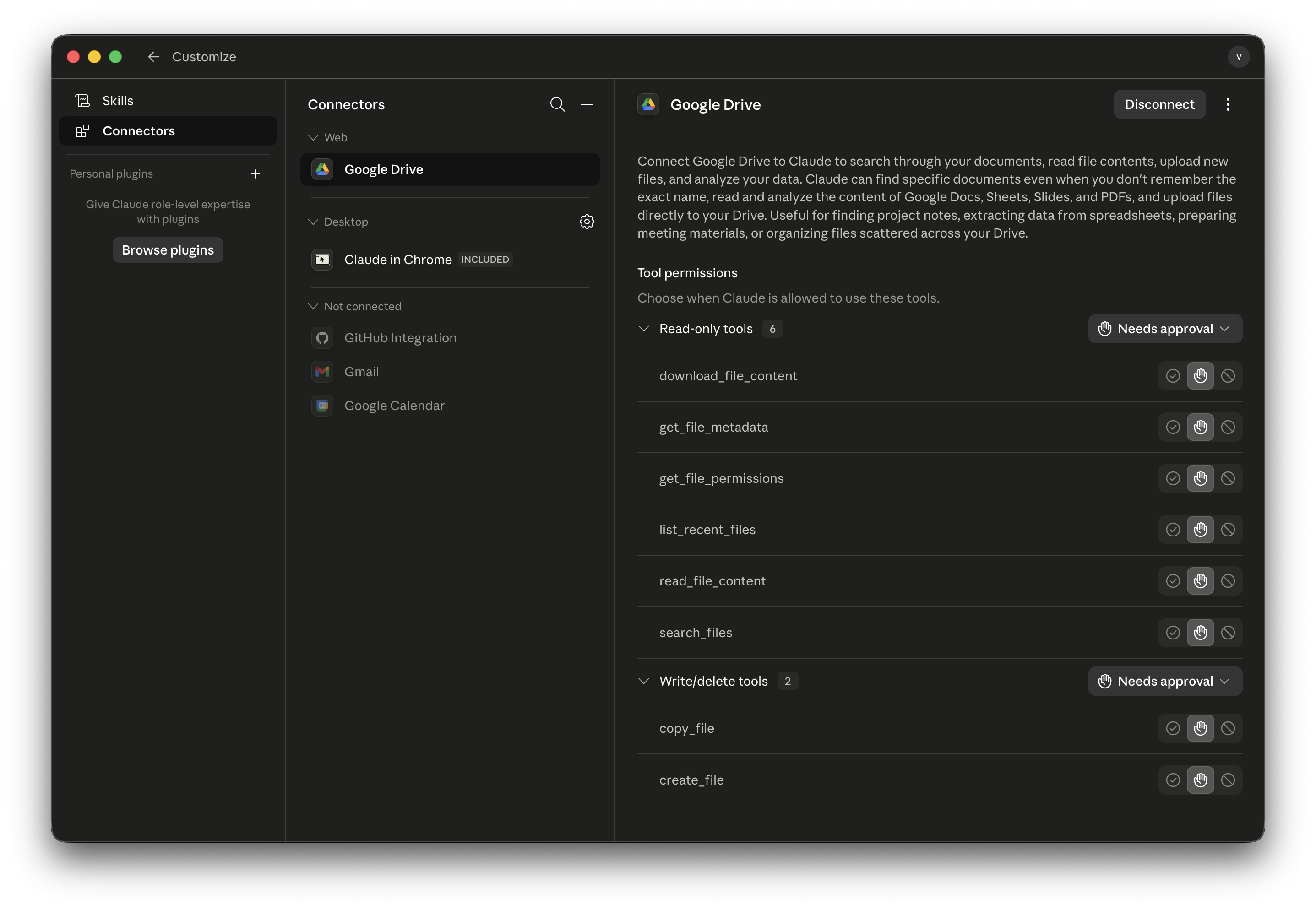
- Adjust MCP is supported on both Claude Desktop + CLI.
- In Claude settings, select Connectors.
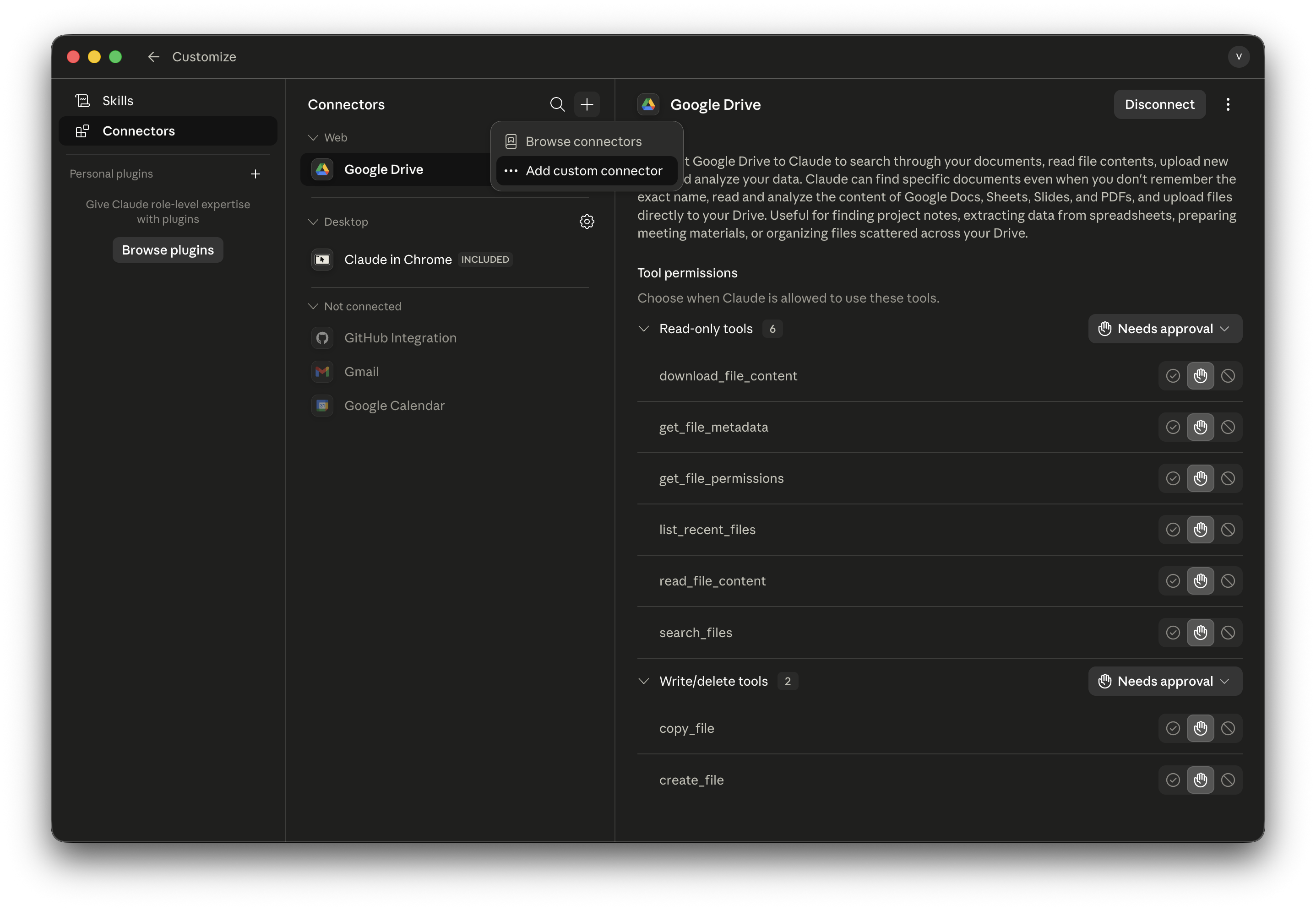
- Select + (Add connector).
- Select ... Add custom connector.
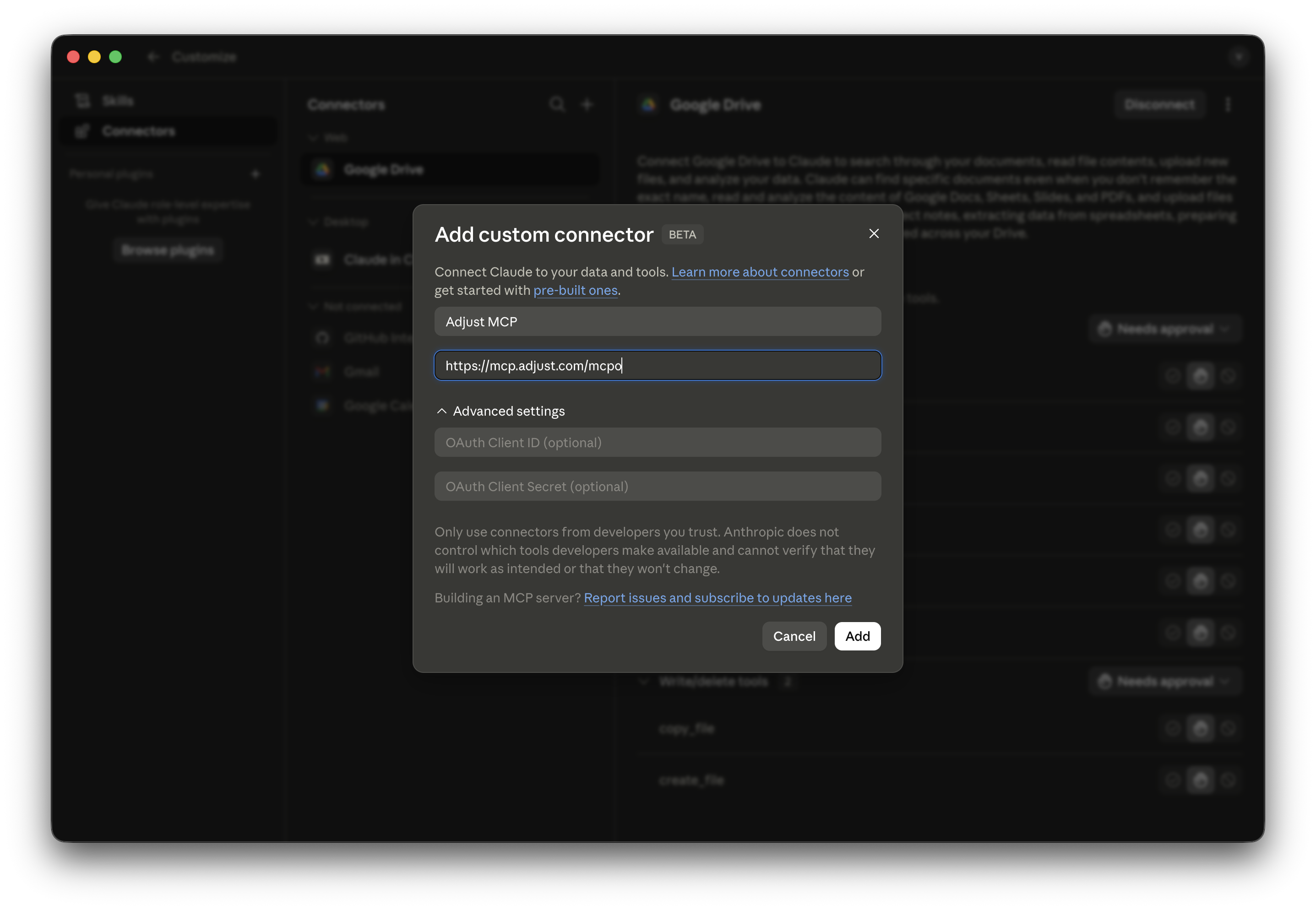
- Enter the connector name (for example: Adjust MCP).
- Enter
https://mcp.adjust.com/mcpo - Select Add.
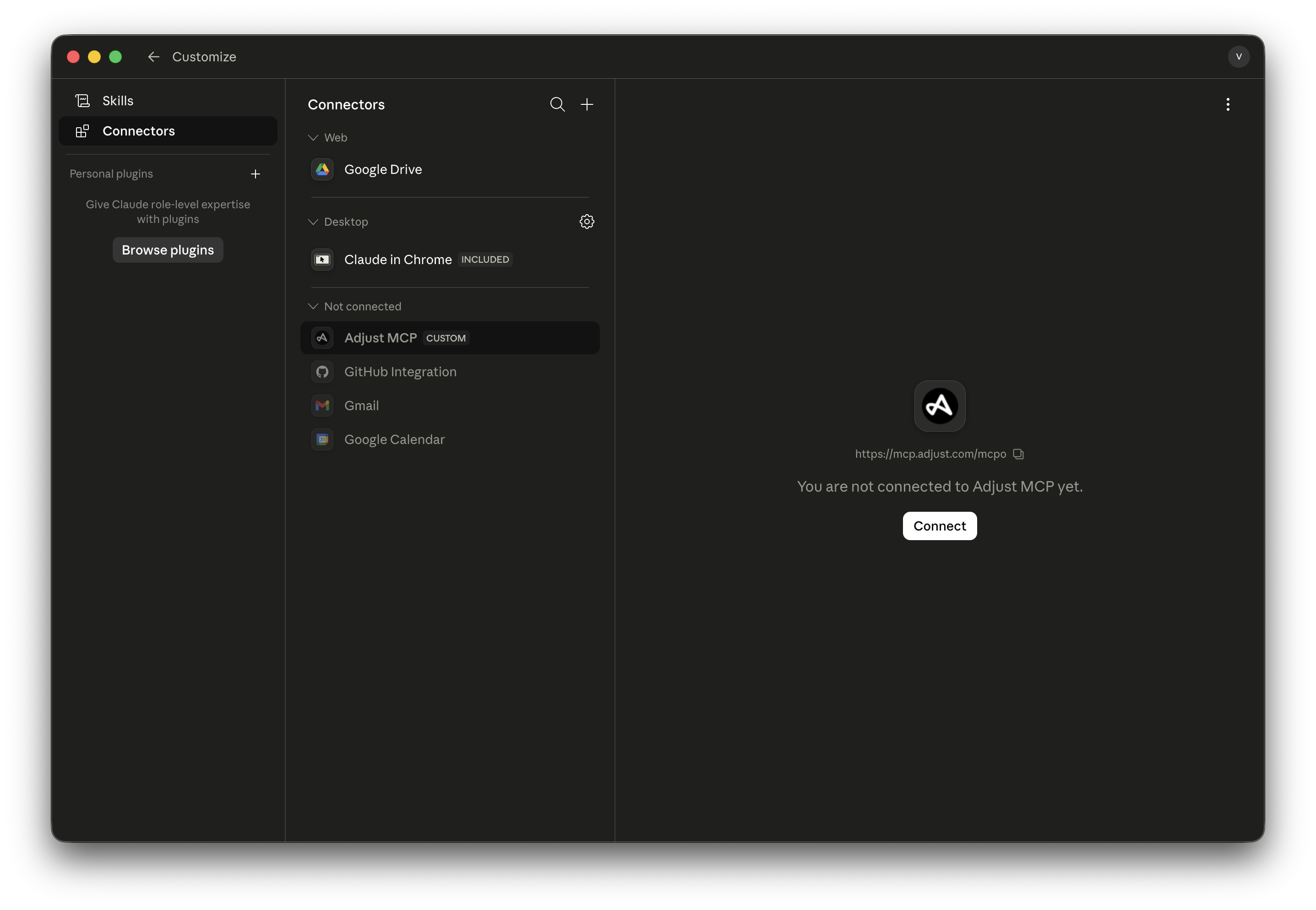
- Select Connect.
- Sign in to Adjust and authorize the connection when prompted.

Codex
- Adjust MCP is supported on both Codex Desktop + CLI
- In Codex, select Settings.
- Navigate to MCP servers.
- Select + Add server.
- Enter the MCP server name (for example: Adjust MCP)
- Select the Streamable HTTP option.
- Under URL, enter
https://mcp.adjust.com/mcpo - Select Save.
- Sign in to Adjust and authorize the connection when prompted.


Cursor
- Adjust MCP is supported on Cursor.
- In Cursor, open Customize > MCP.
- Select + New MCP server.
- Enter the server name (for example: Adjust MCP).
- Under URL, enter
https://mcp.adjust.com/mcpo - Save the server.
- Sign in to Adjust and authorize the connection when prompted.
If the user is a multi-account user, select the appropriate account during the authorization step.
The resulting JSON should look like this:
{
    "mcpServers": {
      "Adjust MCP": {
        "url": "https://mcp.adjust.com/mcpo"
      }
    }
}

Troubleshooting
Adjust MCP does not return expected results
Adjust MCP does not expose user-level or event-level data. Queries that require non-aggregated data are not supported. If an external workflow expects non-aggregated data, use a workflow that relies on aggregated data outputs.
Adjust MCP setup does not work
Confirm that:
- Adjust MCP is enabled on the account.
- The MCP client configuration includes the correct MCP URL.