Auto-translate Adjust campaign structure to UTM parameters
Adjust can convert Adjust campaign structure values into UTM parameters and append them to the long link (full click URL). This reduces manual UTM tagging and supports consistent web analytics.
- Reduces manual UTM tagging by generating UTMs from campaign structure
- Uses one app-level setting to control app-wide behavior
- Keeps existing UTMs because Adjust does not overwrite UTMs on destination URLs
- Uses a customizable translation from campaign structure fields to standard UTM parameters
- Also works with custom parameters beyond UTMs if your web analytics tools require / rely on other non-UTM parameters (e.g.
cidfor Adobe analytics) - Works with web destinations when auto-appending parameters to web destinations is on
What does it do?
When auto-translation is turned on, Adjust converts campaign structure values into UTM parameters and appends them to the long link (full click URL).
If auto-appending to web destinations is turned on, the long link query parameters (including translated UTMs) also append to the final web destination URL.
You can use the default translation described below, or configure a custom mapping for your app. See Customize the UTM mapping.
How does it work?
Control: app-level setting
In App Settings > Defaults, use Auto-translate Adjust campaign structure to UTM tags.
- Default: Off
- Scope: App-level

UTM translation
By default, Adjust uses the following fixed translation. You can replace this with your own mapping per app — see Customize the UTM mapping.
| Adjust field | UTM parameter |
| channel | utm_source |
| campaign | utm_campaign |
| adgroup | utm_term |
| creative | utm_content |
Example translated parameters:
utm_source=Social&utm_campaign=SummerCampaign&utm_term=Influencer&utm_content=ShortVideo
If a custom mapping has been saved for the app, Adjust uses that mapping instead of the default shown above.
When the setting is on
Adjust appends translated UTM parameters to the long link (full click URL).
If Auto-append custom parameters to web destinations is on, the translated UTM parameters also appear on the final web destination URL.
When the setting is off
Adjust does not translate campaign structure into UTM parameters. You can continue to add UTM parameters manually to the redirect and fallback parameters if needed.
If UTMs already exist on the destination URL
Adjust does not overwrite UTM parameters already present on the destination URL.
Get started
Requirements
Auto-translate is available for customers with TrueLink Core Starter, Core Standard, and Enterprise plans. Reach out to sales@adjust.com to upgrade now.
Turn on auto-translation
- In the Adjust dashboard, go to App Settings.
- Select Defaults.
- Find Auto-translate Adjust campaign structure to UTM tags.
- Turn the setting on.
To append translated UTMs to the final web destination URL, also turn on the app-level toggle Auto-append custom parameters to web destinations.
Manage auto-translation
Turn auto-translation on or off
- In the Adjust dashboard, go to App Settings > Defaults.
- Turn on or turn off Auto-translate Adjust campaign structure to UTM tags.
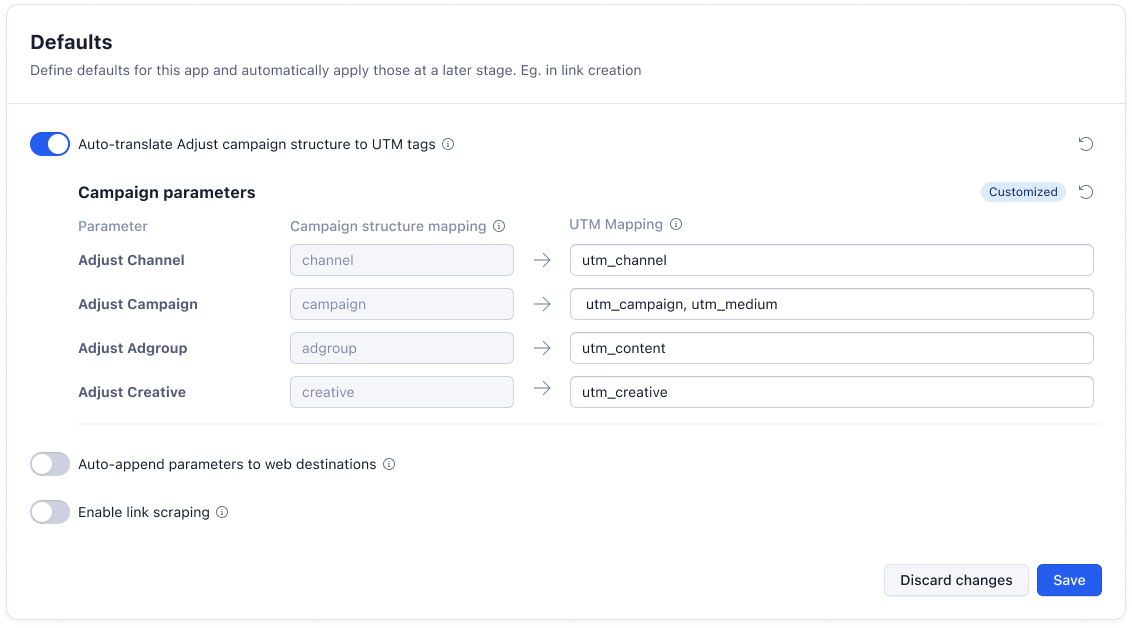
Customize the UTM mapping
- With auto-translation on, select Customize.
- For each campaign structure field (channel, campaign, adgroup, creative), set its mapping:
- Keep the default UTM parameter, or
- Choose another preset (
utm_source,utm_campaign,utm_medium,utm_term,utm_content), or - Type a custom key. For example,
cidan Adobe Analytics parameter, and press Enter to add it, or - Add more than one key to a field, or
- Leave a field blank. A blank field is intentional — Adjust does not append a parameter for that field and does not fall back to the default.
- Select Save.
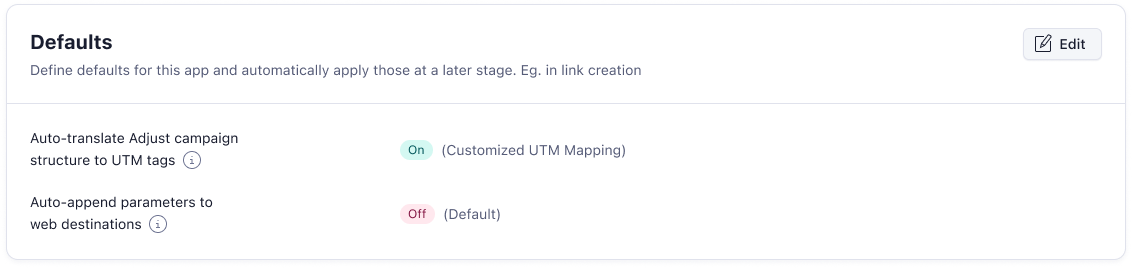
The Defaults page shows Default UTM mapping or Customized UTM mapping depending on whether a custom mapping has been saved.
Custom keys containing special characters or spaces are URL-encoded automatically when applied to links.
For combined links (links spanning more than one app), Adjust always uses the primary app's mapping.
Changes to the mapping apply to links created after the change. Links already created keep their original UTM values.
Testing
- Turn on Auto-translate Adjust campaign structure to UTM tags.
- Create or select an Adjust link that includes campaign structure values.
- Open the long link (full click URL).
- Confirm the long link URL includes the translated UTM parameters.
- Optional: Turn on Auto-append custom parameters to web destinations and trigger a redirect to a web destination using
adj_redirectoradj_fallback. - Confirm the final web destination URL includes the translated UTM parameters.
- If the destination URL already includes UTM parameters, confirm the existing UTM parameters remain unchanged.
- Optional: If you configured a custom UTM mapping, confirm the long link uses your custom parameters instead of the default mapping.
FAQ
Does auto-translation overwrite UTMs on a destination URL?
No. Adjust does not overwrite UTM parameters already present on the destination URL.
Do translated UTMs appear on the web destination URL automatically?
Translated UTMs appear on the web destination URL only when Auto-append custom parameters to web destinations is on.
[Can I change which UTM parameters are generated?](#change-utm-parameter-mapping
Yes. Configure a custom mapping under App Settings > Defaults > Auto-translate > Customize. See Customize the UTM mapping.
Next steps
If translated UTMs do not appear on the long link when auto-translation is on, contact support@adjust.com.