Custom dashboards
Custom dashboards in Datascape let you build highly personalized dashboards tailored to your specific analysis needs. Rather than having to spend time building your own reporting solution or using third-party vendors, you can instead get flexible, on-demand visualizations using your Adjust data.
- Hyper-customizable analysis environment: tailor every widget and layout to your preference.
- Private by default: Manage who views or edits dashboards with permissions.
- Flexible reporting: Combine metrics, filters, and timeframes to match any reporting need.
What do they do?
Custom dashboards are designed to solve core challenges faced by modern UA managers, product teams, and marketing executives. Preset dashboards and static reports are often too rigid or disconnected to answer the nuanced questions that arise during user acquisition or product performance analysis.
Key use cases:
- Combine different data methodologies (cohorts, funnels, journeys) into one cohesive view
- Answer complex questions like: "Is my portfolio doing well across platforms?"
- Replace time-consuming report drill-downs with persistent dashboards
Create a dashboard
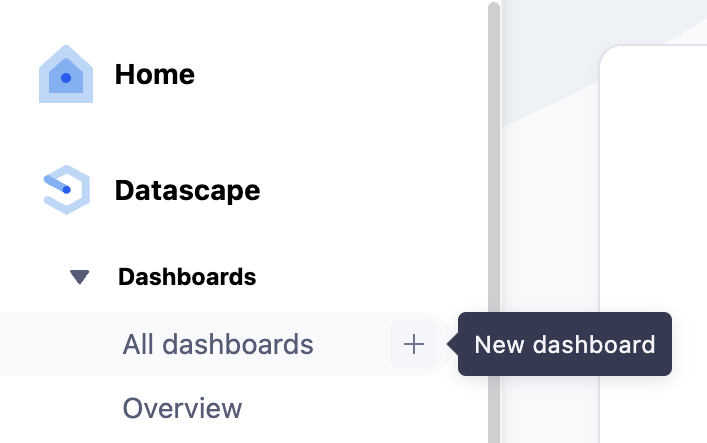
- Navigate to Datascape > Dashboards.
- Next to All Dashboards, select
 Add new dashboard.
 - Set up your data configuration view.
When you save your dashboard, it is given a default name. You can add your own name by selecting  Edit.
Edit.
Add and customize widgets
Widgets are the modular blocks that display visualizations. When creating a new dashboard, you use a custom widget by default. This lets you choose the visualisation type (line chart, score card, pie chart etc.) and apply whichever metrics and dimensions you like.
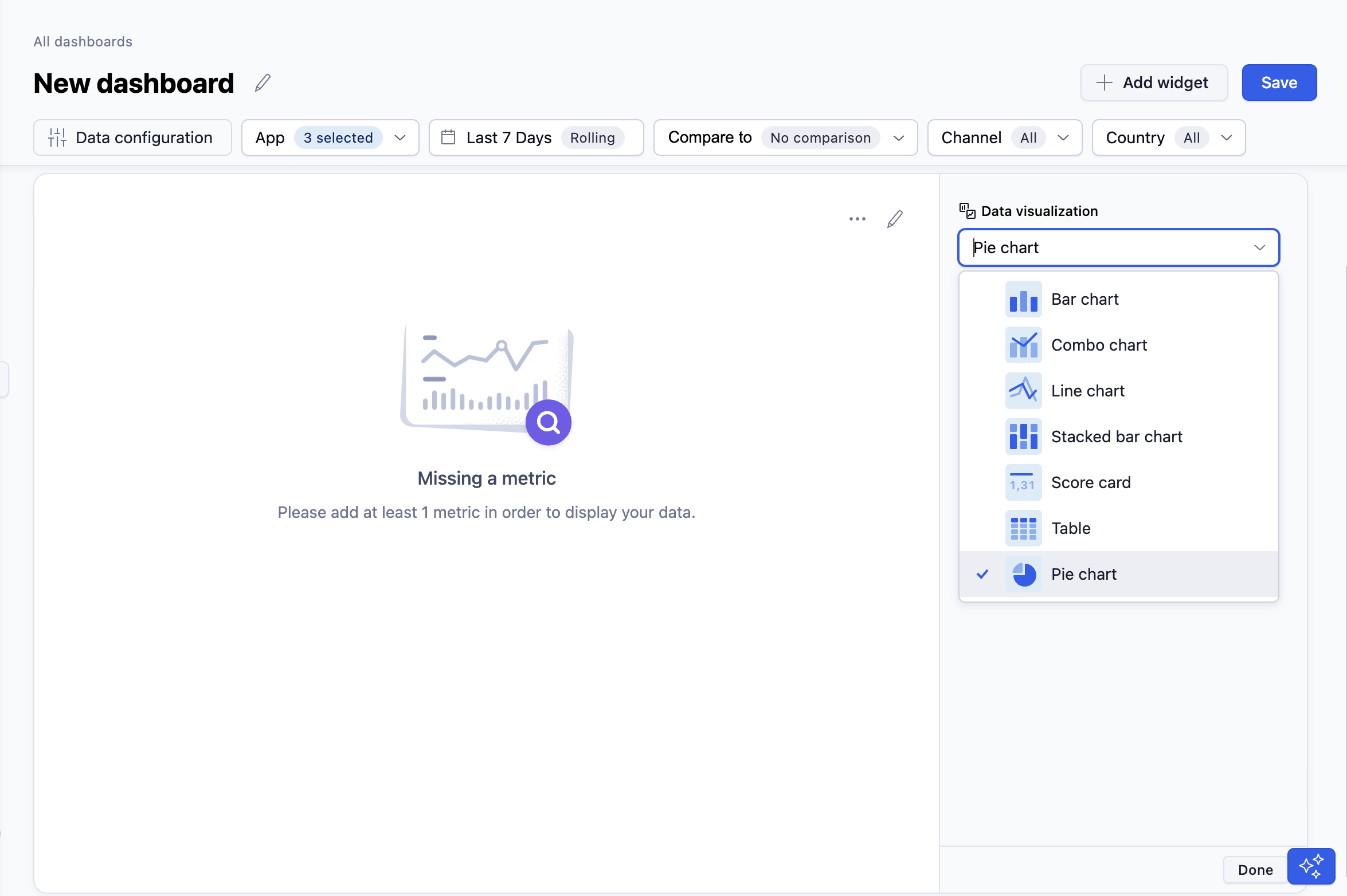
- Select Data visualization
- Select your Metrics (e.g. D7 ROAS, Installs, Sessions) or custom metrics.
- Select your Dimensions (e.g. Channel, Country, Platform).
- Set Data configuration filters at the widget level.
- For example: You can set the dashboard to show overall portfolio data for the US, but configure a single widget to display only Facebook campaign performance.
- Name the widget by selecting
 Edit next to the widget title. Hit enter to save.
 - (Optional) Reposition the widget on the canvas using the
 Options menu.
 - Select Done.
 Options menu.
To add more widgets, select  Add widget, choose whether to use a preset widget or define your own, and repeat these steps.
Widgets will inherit global filters unless you apply widget-level filters.
Resize and rearrange dashboard widgets
You can customize the layout of your custom dashboard by resizing and rearranging widgets.
Resize a widget
Widgets can be displayed in either full-width or half-width format. Half-size widgets allow you to view more insights within the same dashboard space.
To resize a widget:
- Select Options in the widget top-right corner.
- Select Full size to display the widget across the full width of the dashboard.
- Select Half size to reduce the widget width and place two widgets side by side.
Alternatively, select the bottom-right corner of the widget and use the dragging function to increase or decrease the widget width.
Rearrange widgets
You can change the order of widgets to organize your dashboard according to your needs.
To move a widget:
- Click and hold the widget header.
- Drag the widget to your preferred position.
- Release it to drop it into place.
You can combine resizing and drag-and-drop functionality to create a layout that best supports your workflow.
Manage widget actions
You can use the widget action menu to perform additional actions on individual widgets in your dashboard.
To access the widget action menu:
- Select Options in the widget's top-right corner.
- Choose one of the available actions:
- Resize the widget.
- Duplicate widget to create a copy with the same configuration.
- Export as image to save a screenshot of the widget.
- Open as report to view the widget data in a report.

Use a dashboard template
If you would like to use one of the Adjust default dashboards as a starting point for building your own custom dashboard, you can use the corresponding template. There are templates available for the following Adjust default dashboards:
- Overview
- User Acquisition
- Monetization
- SKAN
- Cohorts
Once you have selected a template to use, add your own custom widgets to provide more tailored information. You can also change the order of the widgets, so you see the data that's most important to you first.
Once you are done, select Save new dashboard. It now displays under All dashboards.
Manage custom dashboards
To view all of your custom dashboards:
- Navigate to Datascape > Dashboards > All dashboards.
- Select the My dashboards tab to see only those you have created.
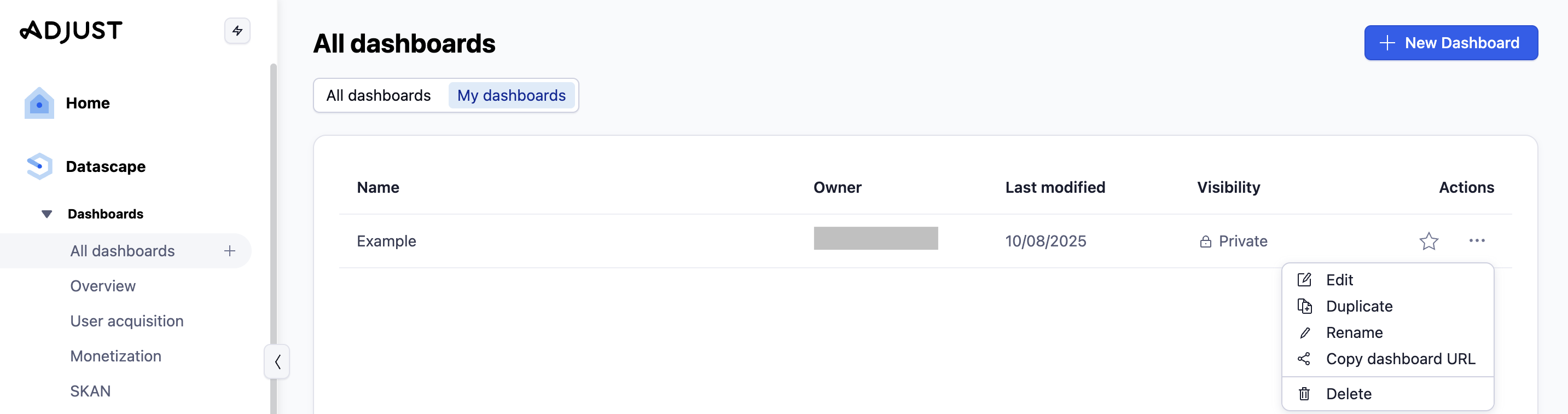
To make changes to a saved dashboard, select  Edit from the dashboard view. You can:
- Edit the configuration
- Make a copy
- Rename the dashboard
- Copy the URL for sharing
- Delete the dashboard
Manage permissions
Custom dashboards are private by default. No one else can view them until you assign public visibility.
To make a dashboard visible to others on your account:
- Select the dashboard you want to share.
- Select Edit.
- Select Visibility > Public.
- Select Apply.
You can now share your dashboard with others in your organization using the share link.
Make your dashboard a favorite
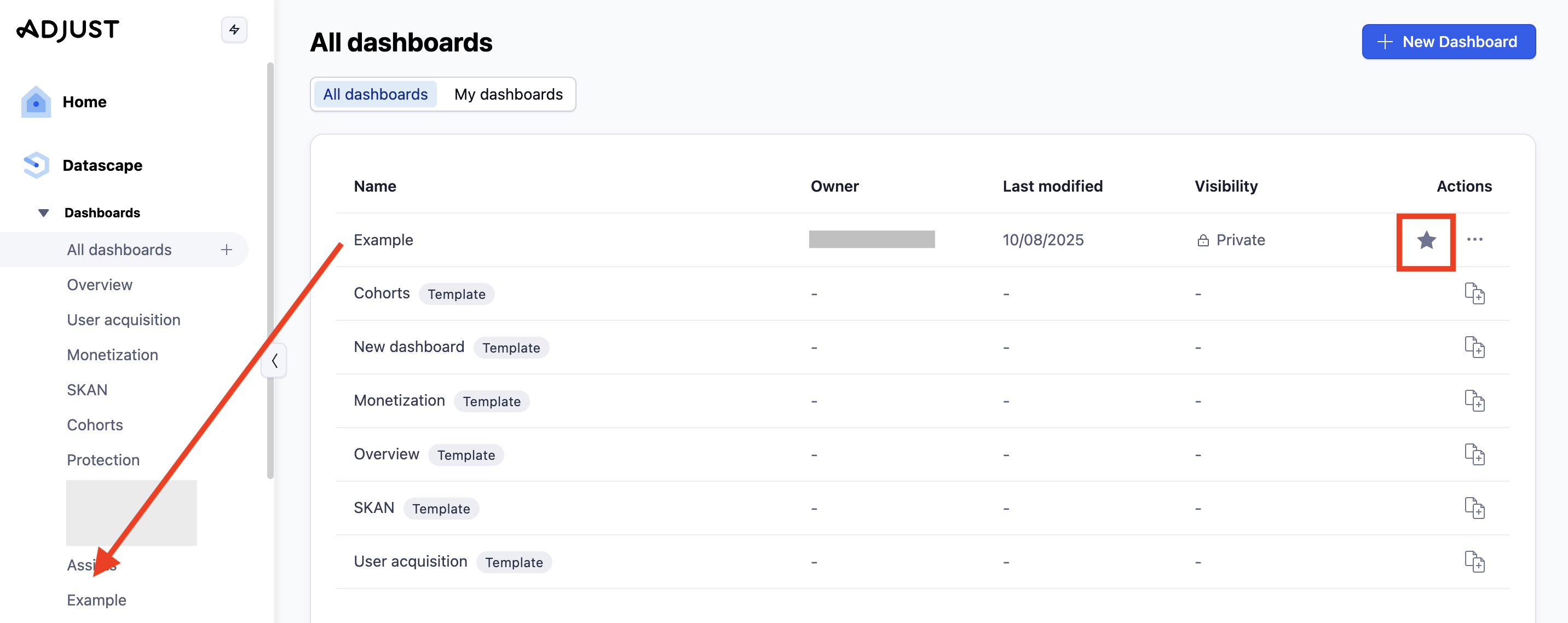
For quick access to your custom dashboard, you can make it a favorite. This put its in the menu sidebar alongside the preset Adjust dashboards.
To make a dashboard a favorite, select  Star next to your dashboard in the list.