Store detection and verification
Adjust detects and verifies which store an install came from across a wide range of app stores, including Google Play, the Apple App Store, Huawei AppGallery, and many others. This article explains how detection works by default, when you need additional signals for more precise results, and what happens with fallback and multiple signals.
Detection and verification
Adjust answers two questions for every install: which store did it come from, and can that be independently confirmed?
- Detection makes a best-effort match immediately, using whatever signals are available at install.
- Verification then checks that match against independent evidence, such as an install referrer API call or a store license check.
The verification result is recorded as an additional signal alongside the store type. For example, if an install is detected as Google Play but verification fails, the system still shows the store as Google Play, with a verification result of failed.
How detection works by default
Detection starts from the operating system reported by the device. For most operating systems, there's exactly one store associated with it, so detection is deterministic without any extra integration on your part. For example, iOS installs are matched to the Apple App Store, tvOS installs to the Apple App Store (TV), and this holds for CTV and Console platforms.
A small number of platforms, most notably Android but also PC, don't have a single store associated with them. Google Play, Huawei AppGallery, Xiaomi GetApps, Samsung Galaxy Store, and others all run on Android, so the OS alone isn't enough to tell them apart. This is where additional signals, described below, improve precision. Skipping them doesn't break detection — it just means Adjust can't tell the specific store apart on its own. What you'll actually see instead depends on your settings: the default store you've configured for that operating system, or Unknown if you haven't set one. Fallback behavior covers this in detail.
Additional signals for multi-store platforms
These signals aren't required — the system works out of the box. But without them, Adjust can only report the safe default: a less-precise detection, or a skipped verification, not a real result for your setup. Adjust has no way to know in advance which stores or verification methods you actually use, so tuning means telling it what to check for your integration.
| Signal | Used for | What it confirms |
|---|---|---|
| Pre-install signals-> Preinstall partner click | Detection | Android only. A supported preinstall partner writes engagement data to the device, which arrives as a click when the app first opens; this is the same mechanism covered in Pre-install measurement. Marks the install as preinstall, which outranks every other signal. Not something you configure — see Outcome reference. |
| Pre-install signals-> System app flags | Detection | Android only. A pair of flags, is_system_app and is_updated_system_app, sent directly at install or session time, identifying the app as a pre-loaded system app. Marks the install as preinstall, which outranks every other signal. Not something you configure — see Outcome reference. |
| Store info-> System-reported store | Detection | Android only. Read directly from the Android system API (store_name_from_system), this identifies which store's installer placed the app on the device. It's the strongest detection signal when available, and takes priority over a store you've configured, unless you turn on Require SDK/S2S store type signal to prioritize your configured value instead. If the installer package doesn't map to a known store, the install is reported as custom; see Outcome reference. |
| Store info-> Store name and app ID you configure | Detection | Adjust's mechanism for supporting multi-store deployments in cases where the system-reported signal isn't available, such as non-Android platforms, PC, and server-to-server setups. Sent as store_name_from_client and store_app_id_from_client. Works alongside the system-reported signal when both are present. Currently only the store name is used for detection; the app ID is reserved for future use. Set via the App ID field when you add or edit a store in App Setup. See the SDK integration guide for setup steps. |
| Windows Store SDK build | Detection | Windows only. The SDK reports whether it was built for the Windows Store, using a dedicated request header. This alone can't tell Microsoft Store on PC apart from Microsoft Store on mobile — configuring store_name_from_client (see above) resolves that. If your configured store name doesn't match a Microsoft store, the two signals are recorded as a conflict. |
| Google Play Games for PC | Detection | Windows only. Google Play Games for PC runs Android apps on Windows, so this uses the Android SDK's system feature check to detect it automatically, without needing a separate plugin. Not something you configure. |
| Steam ID or Steam UUID | Detection | PC only (Windows, macOS, Linux). Identifies the install as coming through Steam. Checked before any client-declared store value. Not something you configure. |
| Epic Games ID | Detection | PC only (Windows, macOS, Linux). Identifies the install as coming through the Epic Games Store. Checked before any client-declared store value. Not something you configure. |
| Google Play referrer | Verification | Confirms the install independently, using Google Play's own Install Referrer API. |
| Huawei AppGallery referrer | Verification | Confirms the install independently, using Huawei's own referrer API. |
| Xiaomi GetApps referrer | Verification | Confirms the install independently, using Xiaomi's own referrer API. |
| Samsung Galaxy Store referrer | Verification | Confirms the install independently, using Samsung's own referrer API. |
| Vivo Appstore referrer | Verification | Confirms the install independently, using Vivo's own referrer API. |
| Google Play License Verification Library (LVL) | Verification | For any store in the Google Play family. Confirms the install with a cryptographic check against Google's licensing service. Controlled by Turn on License Verification Library (LVL) integration under General store checks. See LVL settings for how this interacts with other verification methods. |
| Adjust SDK Signal (iOS, Apple TV) | Verification | For iOS and Apple TV. Confirms an App Store install using the dedicated Adjust SDK signal. Controlled by the Adjust SDK Signal check setting in Store verification configuration. |
All five referrer methods above are controlled by the same Referrer check setting in Store verification configuration, set independently per store.
What you need to integrate
Each additional signal depends on a minimum SDK version, and in some cases a plugin or configuration step. If you're behind on SDK version, you won't see an error. The signal is just never sent, and detection continues to work using whatever signals are available.
| Signal | Requirement |
|---|---|
| Pre-install signals-> Preinstall partner click | Android SDK v4.27.0 or later, set up through a supported preinstall partner. |
| Pre-install signals-> System app flags | Android SDK v5.7.0 or later |
| Store info-> System-reported store | Android SDK v5.4.0 or later |
| Store info-> Store name and app ID you configure | On Android: Android SDK v5.4.0 or later. On PC (Windows, macOS, Linux): the separate Steamworks Unity SDK v1.1.0 or later, or Steamworks Unreal SDK (any released version) — not part of the main Android or iOS SDK version. See Steamworks Unity SDK. |
| Windows Store SDK build | Built into the SDK from its earliest support for Windows; no minimum version applies. Disambiguating PC from mobile requires configuring store_name_from_client via the Steamworks SDK — see the requirement above. |
| Google Play Games for PC | Android SDK v4.36.0 or later. No separate plugin is needed. |
| Steam ID or Steam UUID | Steamworks Unity SDK v1.0.0 or later, or Steamworks Unreal SDK (any released version). These are separate companion packages, not part of the main Android or iOS SDK. |
| Epic Games ID | Server-to-server only |
| Google Play referrer | Built into the SDK from its earliest versions supporting Google Play; no minimum version applies. |
| Huawei AppGallery referrer | Android SDK v4.21.2 or later, plus the Huawei referrer plugin |
| Xiaomi GetApps referrer | Android SDK v4.31.0 or later, plus the Xiaomi referrer plugin |
| Samsung Galaxy Store referrer | Android SDK v4.33.0 or later, plus the Galaxy Store referrer plugin |
| Vivo Appstore referrer | Android SDK v4.33.1 or later, plus the Vivo referrer plugin |
| Google Play License Verification Library (LVL) | Android SDK v5.4.4 or later, plus LVL configured with your public key |
| Adjust SDK Signal (iOS, Apple TV) | iOS SDK v5 or later, plus Signature library v3.32 or later |
For S2S integrations, the intended store name and app ID can be shared via the store_name_from_client and store_app_id_from_client request parameters.
Fallback behavior
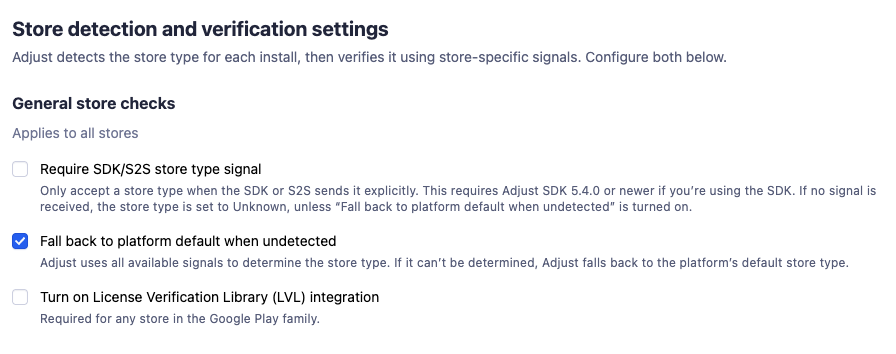
When Adjust can't determine a specific store for an install, Fall back to platform default when undetected falls back to the store you've configured as your app's default for that operating system, rather than marking the install as unknown. This fallback is on by default and can be turned off if you'd rather see installs marked as unknown than have them attributed to your default store.
If you turn fallback off and also turn on Require SDK/S2S store type signal, an install with no client-declared store name is marked as unknown outright, with no fallback attempted. See Configuring store detection and verification for where to change this.
How multiple signals are resolved
Most installs only ever produce one store signal, so there's nothing to resolve. Occasionally, though, more than one signal comes in for the same install — for example, an initial detection followed later by a verification check, or two separate signals that each point to a different store. When that happens, Adjust follows this priority:
- Pre-install always wins. If an install is identified as pre-loaded, that answer sticks — any other signal is ignored, whether it's present in the very same request or arrives separately, later.
- The first usable signal is accepted, if nothing is on record yet.
- A verified result is protected. For example, once an install is confirmed as Google Play through the install referrer check, a later, unverified signal suggesting a different store doesn't change it — Google Play stays on record. Only another verified result can override an already-verified one.
- On Android, the system-reported store wins over your configured store, by default. If
store_name_from_systemandstore_name_from_clientdisagree in the same request, Adjust uses the system-reported value, since it comes from the OS itself rather than from your integration. Unlike the other cases here, this isn't an unresolved standoff — it's a deterministic, per-request choice, and you can flip it with Require SDK/S2S store type signal to prioritize your configured value instead. See Additional signals for multi-store platforms. - A genuine standoff is reported as unknown. If two different, unrelated signals — neither one verified — point to two different stores, whether they arrive in the same request or in separate ones (say, one looks like Steam and another looks like Epic Games), Adjust has no way to pick a winner. The install is marked unknown, the same result you'd see if no usable signal had arrived at all. Unlike the other cases above, this one doesn't self-correct: once an install lands here, it stays unknown even if more signals arrive afterward.
Outcome reference
Detection always resolves to exactly one store_type value per install — this table lists every value it can take. Verification is tracked separately, as its own result per method (LVL, install referrer, Adjust SDK Signal), and doesn't change which store_type value is shown here — see Where this shows up for how store_type and verification results are each made available in callbacks and reporting.
store_type can show any store Adjust supports — detection recognizes these automatically from the signals available, whether or not you've added that store in the App Setup page in AppView. Preinstall, Custom, and Unknown are different: they aren't store names at all, but labels Adjust assigns automatically when an install doesn't map to a specific, supported store.
| Scenario | store_type value |
|---|---|
| A specific store is detected | The store name, for example Google Play — shown regardless of whether verification passes, fails, or is skipped. |
| No specific store detected, and fallback is on | Your app's configured default store for that operating system |
| The app was pre-loaded by an OEM or a preinstall partner | Preinstall. Checked before any store is determined, and outranks every other signal. |
| The Android system-reported store signal identifies a real, recognized install that isn't one of Adjust's named stores | Custom. This applies to the system-reported store signal specifically, not to other detection signals. |
| No usable signal at all, fallback is off, or Require SDK/S2S store type signal is turned on, or two different unrelated stores were both indicated | Unknown |
If Adjust detects a store that hasn't been added as a platform for the app yet, reports show a temporary placeholder instead of the app's name — the store type and app token combined, in the format {store_type}_{app_token}, for example xiaomi_abc123abcde. Once you add that store as a platform, reports switch to showing the app's actual name instead.
This only applies to actual detected stores. It doesn't apply to Preinstall, Custom, or Unknown — those aren't stores you configure in the first place, so there's no "unconfigured" state for them to fall back from.
Configuring store detection and verification
You don't need to change any settings for detection and verification to work. Adjust detects stores using the available signals and default settings automatically, and the results are already available in your reporting.
If you want to improve precision for specific stores, or control how strict verification is, you can adjust this under AppView > Protection > Store detection and verification settings:
- App level configuration, which covers detection settings such as Fall back to platform default when undetected and Require SDK/S2S store type signal.
- Store verification configuration, which applies per store type. This is separate from detection — detection recognizes any supported store automatically, regardless of platform information is saved (see Outcome reference) — but to turn verification checks on or off for a specific store, that store needs to be configured in your App setup settings first. Verification configuration is available for: Google Play, Google Play (TV), Google Play (PC), Huawei AppGallery, Xiaomi GetApps, Samsung Galaxy Store, Vivo Appstore, Apple App Store, and Apple App Store (TV). If you don't see a store here, add it from the Platforms tab — see Connect your platform.
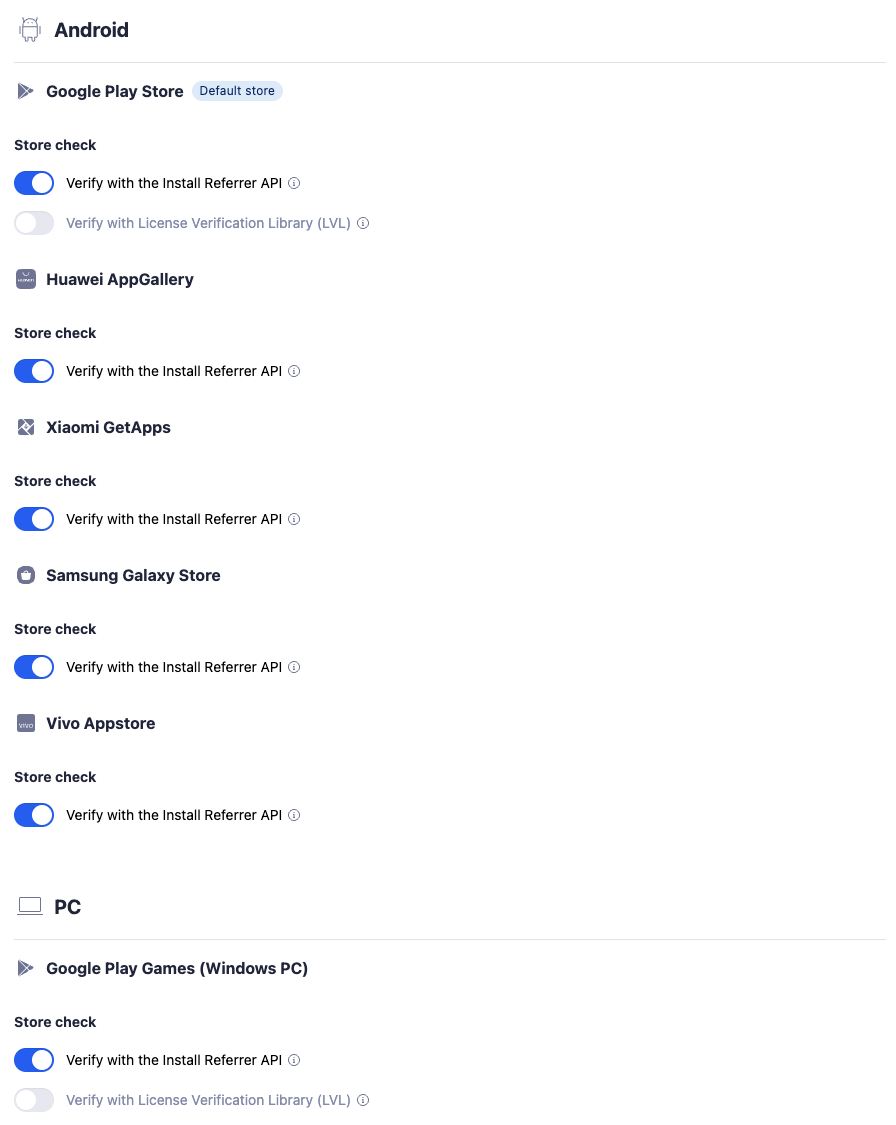
These are the defaults before you make any changes:
| Method | Applies to | Default |
|---|---|---|
| Referrer check | Google Play, Google Play (TV and PC), Huawei, Xiaomi, Galaxy Store, Vivo | On |
| LVL check | Any store in the Google Play family | Off. Requires your public key to be configured before it can be turned on. Set via Turn on License Verification Library (LVL) integration under General store checks. See LVL settings. |
| Adjust SDK Signal check | Apple App Store, Apple App Store (TV) | Off. Turn this on if you want the stricter check. |
We recommend reviewing your SDK or S2S integration, platform configuration, and these verification settings to improve the quality of the detection and verification process, even though none of it is required for the system to work.
LVL settings
Google Play License Verification (LVL) is a stricter verification method that checks an install against Google's licensing service directly, rather than relying on the referrer alone. It's a general check, required for any store in the Google Play family, turned on via Turn on License Verification Library (LVL) integration under General store checks. It's off by default, and you can only turn it on once you've configured your app's public key — the toggle isn't available until then.
Once enabled, Adjust evaluates each enabled verification method independently. If you also have referrer check enabled for the same store, the overall verification result is failed if either check fails, even if the other passes. The result is passed only if neither check fails and at least one passes.
Where this shows up
Detection and verification run for every install, whether or not you use any of the surfaces below. Store Rules in Conversion Rules are one way to act on the result — not a requirement to benefit from it. You can read store type and verification results directly, without setting up a Store rule, through raw data, callbacks, or reporting dimensions.
In client and partner callbacks, for apps using store-related placeholders:
{store_info}returns a JSON object built from the raw signals Adjust received. The JSON field names differ from the request parameter names used earlier in this article:from_systemcorresponds tostore_name_from_system,from_clientcorresponds tostore_name_from_client, andapp_idcorresponds tostore_app_id_from_client. On Android,from_systemis the raw installer package name (for examplecom.android.vendingfor Google Play) — not the resolved store name. For example:
{
  "from_client": "google_play",
  "from_system": "com.android.vending",
  "app_id": "com.example.app"
}
Only fields with a value are included, so an install with no client-declared store returns a JSON object without from_client and app_id.
Two further fields, initiating_package_name and originating_package_name, may also appear in this object when the platform reports Android install-source information — they come from the same family of Android install-source APIs as from_system, capturing which package requested versus which package originated the install. They're passed through as received and don't affect detection.
{store_type}returns the resolved store type as a single value, for examplegoogle_play,custom, orunknown.{store_verification_result}returns the overall verification result. Possible values:passed,failed,skipped.
{
  "store_verification_result": "passed"
}{store_verification_result_lvl}— verification result for LVL. Possible values:passed,failed,skipped.{store_verification_result_referrer_api}— verification result for the install referrer API. Possible values:passed,failed,skipped.{store_verification_result_app_store}— verification result for the App Store check based on Adjust SDK Signal. Possible values:passed,failed,skipped.
{
  "store_verification_result_lvl": "failed",
  "store_verification_result_referrer_api": "passed",
  "store_verification_result_app_store": "skipped"
}
As aggregated data, as dimensions:
App store type (store_type), which lets you group by the detected store type for an installPlatform (platform), which lets you group by the platform the store type belongs to (Android, iOS, CTV, PC, Console, Other)OS name (os_name), which lets you group by the OS the install happened on
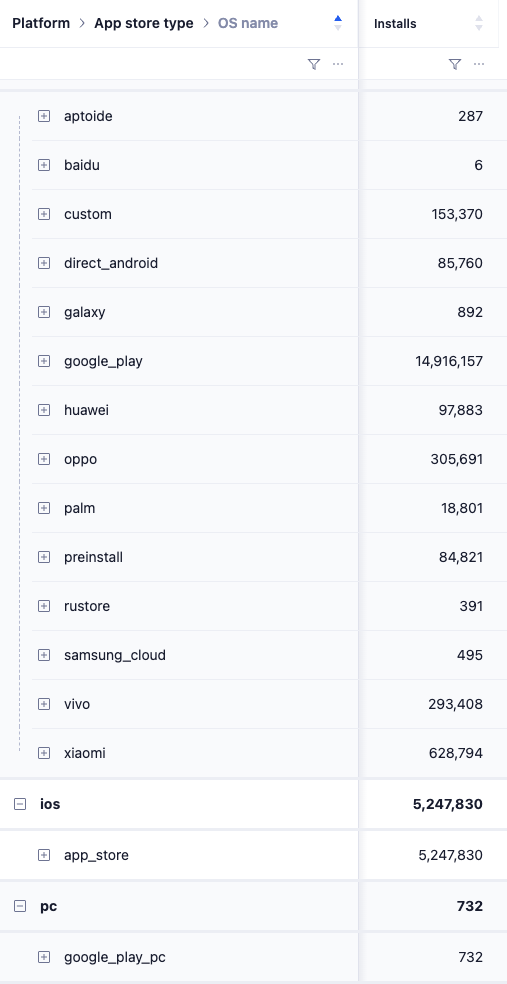
In Conversion Rules Store rule conditions, you can act on the resolved store type and verification results directly.
A verification method that's configured but not turned on as an enabled check returns a skipped result — and Store rule treats skipped the same as passed. If you set up a Store rule for a store, confirm both that the required signal or SDK version is integrated and that verification is actually enabled for that store. For example, a rule allowing only the Apple App Store won't catch anything meaningful unless the Adjust SDK Signal check is turned on — with it left off, every install is skipped, not verified, and the rule passes them regardless. This is also covered in the Store rule setup steps.