Campaign automation rules
Campaign Automation allows you to optimize your campaigns using the specific conditions of your reports. With these conditions in mind, create campaign automation rules based upon the metrics and optimization strategies of your choice, and let the automation job take care of running the calculations and applying the changes.
Here are the benefits of setting up campaign automation rules:
- Efficiency: Automates the process of running calculations and implementing changes, reducing manual effort and streamlining campaign management.
- Integration: Leverage Datascape's reporting capabilities to optimize your campaigns.
- Time saving: By automating calculations and adjustments, users save valuable time that can be redirected towards strategic planning and analysis.
Campaign automation rules is sold separately from Pulse. To get it on your account, contact sales@adjust.com.
Before you begin
Here's what you need to know before getting started.
- Only Admins and Editors can set up and manage campaign automation rules. See the Permission levels article for more information about different user roles.
- You need to have at least one report in Datascape that:
- Includes the metrics you want to use in the campaign automation rule.
- Includes at least one campaign dimension.
- Is set as Public.
- Private reports are not eligible for campaign automation rules.
- Is not used in any other campaign automation rule.
- Has a selected period rolling date, for example Last 7 days, or a custom date that ends with the current date. For example, if today is May 20, then May 17 - May 20 is also valid.
- Make sure to add the necessary connections in DataWorks' Connections management section for Bids and budget services.
Your campaign automation rules
You can view the list of existing rules on the All pulses page. Here you get an overview of your rules including their name, frequency, creation date, notification address, and status. Use the filter next to the search bar to view only certain types of Pulses. You can manage your rules selecting ( ) Options at the end of each row.

Create a campaign automation rule
- In the Adjust dashboard, navigate to Pulse.
- Select + New Pulse.
- Select New campaign automation rule.

1. Select the report to automate
Choose one of the reports created in Datascape which meet the criteria.
- Select + Select report. From the list that appears you can view the owner of the report, when it was last modified, and whether it has been starred. You can even open a preview of the report by selecting
 .
. - Choose the report to use in the campaign automation rule. You can use the search bar to filter by keyword, and/or toggle between All reports and My reports to narrow down the results.
- Select the Select button to continue.
 .
.Once the report has been imported, you can:
 Change the report. Choose another report to work with.
 Open the report. Opens a new windows with the report in Datascape.
 Refresh report's data. Imports the latest data in the report.
- View the applied filters. A list with the report's applied filters. If you want to change them, open the report in Datascape and modify your selection.
 Change the report. Choose another report to work with.
 Open the report. Opens a new windows with the report in Datascape.
 Refresh report's data. Imports the latest data in the report.
2. Select your campaign automation rule settings
Set the general rule settings. The requested information is the Automation name, its description (optional), and defining a frequency with an expiration date, if desired.
Consider the following points when selecting the frequency:
- Daily: Runs every 24 hours. You can select any time in UTC format. By default, 06:00 time is selected because it best accommodates Ad Spend and SKAN metrics using network data. You can select other hours, just be aware that data availability may be impacted when Pulse runs the job at your selected time.
- Weekly: Runs every 7 days. You can select any day and time in UTC format. By default, the Daily, 06:00 frequency is selected. You can select other frequency times, just be aware that data availability may be impacted when Pulse runs the job at your selected time.

3. Define the rule logic
To define what will trigger the rule, you need to:
- Choose the metric to observe and select a condition. Only the metrics in your report can be selected.
- Use AND conditions to narrow down your rule logic.
- Use OR conditions to choose different scenarios that will trigger your rule.
These are the conditions that the rule considers when checking the report’s data. When this data matches the rule conditions, it triggers a set actions for the networks. There are various types of conditions to choose from:
| Numeric type | Percentage type |
|---|---|
| Greater than | Increased by at least |
| Less than | Decreased by at least |
| Equal to |
Increased and decreased by are enabled only if you have set up a comparison filter in the report.
To define the rule logic:
- Select a Metric from the list. This option is available only after choosing a report to work with.
- Add a Condition type.
- Define the condition value.
Add an AND condition
Automation allows you to use multi-condition logic to refine your rule. Use a main metric for a broad logic definition, and narrow it down by using a support metric.
To add an AND condition, select + AND and repeat the steps on the Define the rule logic section.
Add an OR condition
You can set more than one condition for your rule. An OR condition is different to an AND condition because it doesn’t have dependencies to trigger the action. Using an OR condition lets you:
- Define a new logic with a different metric, and even use an AND condition within to add a supporting metric.
- Get notified per condition for a single campaign automation rule.
- Set up a single autoamtion rule to monitor more than one metric change.
To set up an OR condition after defining the first one:
- Select + OR.
- Select a metric and a condition, then assign it a value as described in Define the rule logic.
- (Optional) Refine your rule by adding an AND condition.
4. Choose a network change
Once you have set up the condition logic for your rule, choose the network changes that should be made once the conditions are met. You can select different network actions for one set of conditions, so you dont have to create separate rules for each network. This gives you the greatest efficiency when setting up optimizations.

Attribute availability is defined by the network. Since this means that some attributes are only available for certain networks, the Attribute change field shows only the supported attributes for that network.
You can define a new attribute value or state using a condition type. There are various types of conditions to choose from:
| Numeric type | Percentage type | State type |
|---|---|---|
| Add to current value | Increase by | Paused |
| Subtract from current value | Decrease by | Running |
| Change to exact value |
To choose the actions:
- Select a Network from the list.
- Select an Attribute change.
- Select a Condition type.
- Define the new value or state:
- Enter a percentage or numeric value if the attribute is not a status type.
- Select one of the options for status-type attributes.
- Choose the approval method:
- Manual: Requires you to manually approve or reject actions in the Action Center. The actions remain pending for your review for a maximum of seven days. In case you don't review the actions, the campaign automation rule gets discarded and the attributes will not change.
- Automatic: Automatically accepts the actions. You are no longer required to use the dashboard for review and approval.
- (Optional) If you need to add more actions, select + Add action and repeat the instructions above.
5. Choose who to notify
You can send notifications via Slack, Teams or email. This notification is sent each time there is an action created, whether to inform you if there are actions waiting for approval, or for actions which were approved automatically. Pulse also notifies you when the rule is disabled or enabled by one of your users.
To send the notification via email, simply enter the email address. You can add as many addresses as you like, separating each by comma.
Slack or Teams
Learn how to connect Pulse to your Slack or Teams workspace using our setup guide.
Reports linked to automation rules
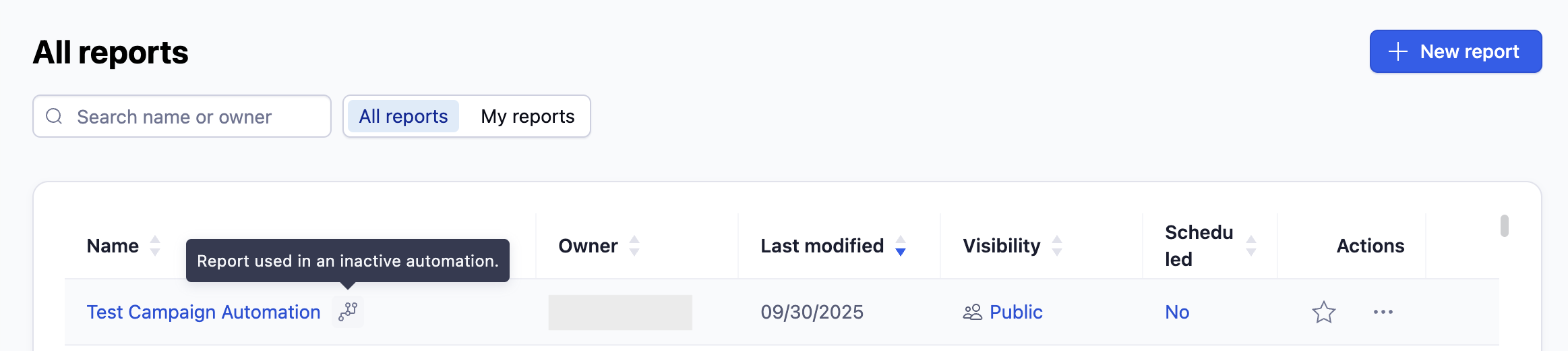
From Datascape > Reports > All reports, you can see which of your reports are linked to an automation rule and whether the rule is active or not.
Whenever a report is linked to a campaign automation, you will see the connection icon  next to its name. If the icon includes a check mark, it means the automation is currently active.
Delete a linked report
If you try to delete a report that is linked to an automation rule, you will receive a warning notification. When a linked report is deleted, it is no longer possible to activate a rule. Deleting a report is permanent, so you will also not be able to access the report again.
Changing a linked report
When you make changes to a report that is linked to an automation rule, this can impact the rule's validation. For example, removing metrics or dimensions that are required as part of the rule logic. Find out more about validation alerts in the section below.
Manage your campaign automation rules
From the All pulses overview, you can use the Type filter to only see your Campaign automation rules. When you select a rule, you are taken to its summary page.
Rule validation
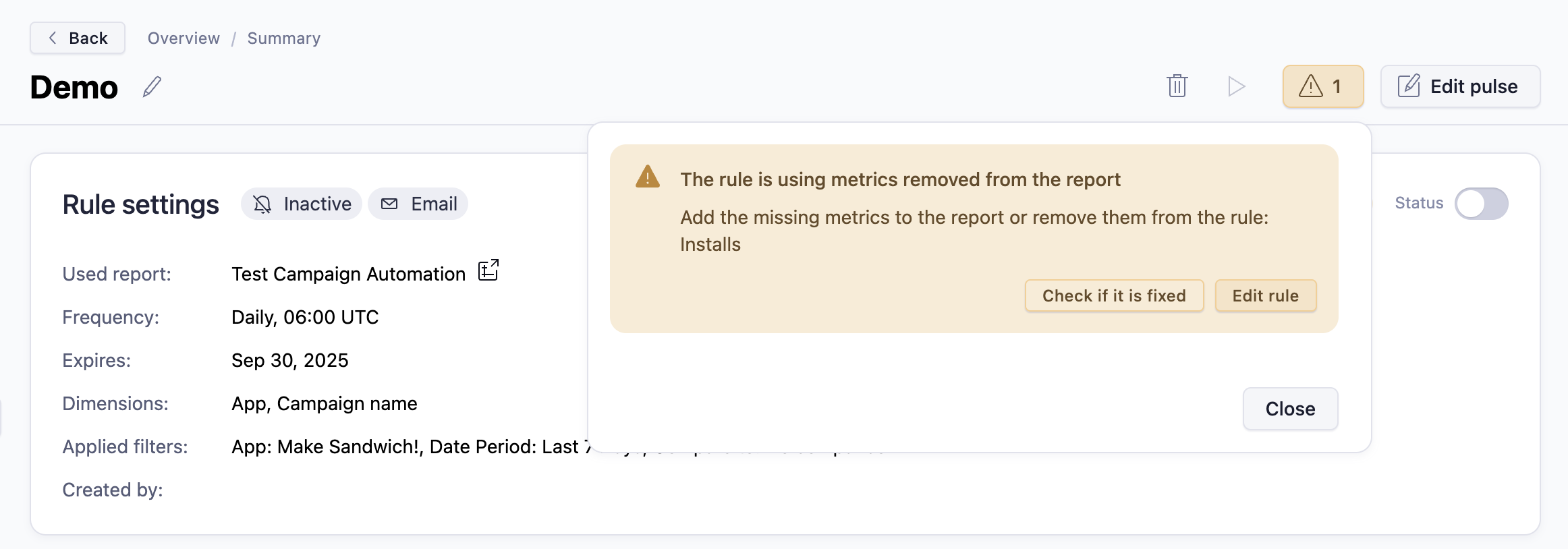
When something happens that means a rule logic fails, you will see a validation error display. For example: you might have removed a metric or dimension from the linked report, deleted the linked report, or removed a required partner credential.
The validation error notification tells you why the validation is failing. You need to either fix the problem or update your rule to resolve the issue.
Edit a campaign automation rule
Editing a campaign automation rule enables you to modify and improve an existing one. You can also optimize your metric choices and actions to produce more targeted results. To edit a rule:
- Select
 Edit pulse.
 - Make your changes.
- Select Save changes.
 Edit pulse.
Rename a rule
You can change the name of the alert at any time. To rename a rule:
- Next to the existing name, select Edit.
- Change the name and hit Enter.
Delete a rule
To delete an rule from your campaign automation rules list:
- Find your rule on the list.
- Select the more options button (
 ) at the end of the row.
 - Select the Delete (
 )option.
 - Confirm deletion by selecting Delete.
 )option.
Change the status of a rule
Rules can be set to Active or Inactive using the Status toggle on the summary page.
Test notification
Pulse allows you to check if the rule is sending the notification to your selected platform. Only Active rules can be tested.
- Make the rule Status is set to Active.
- Select
 Test notification. A success notification appears.
 - Verify that the notification got delivered.
 Test notification. A success notification appears.